
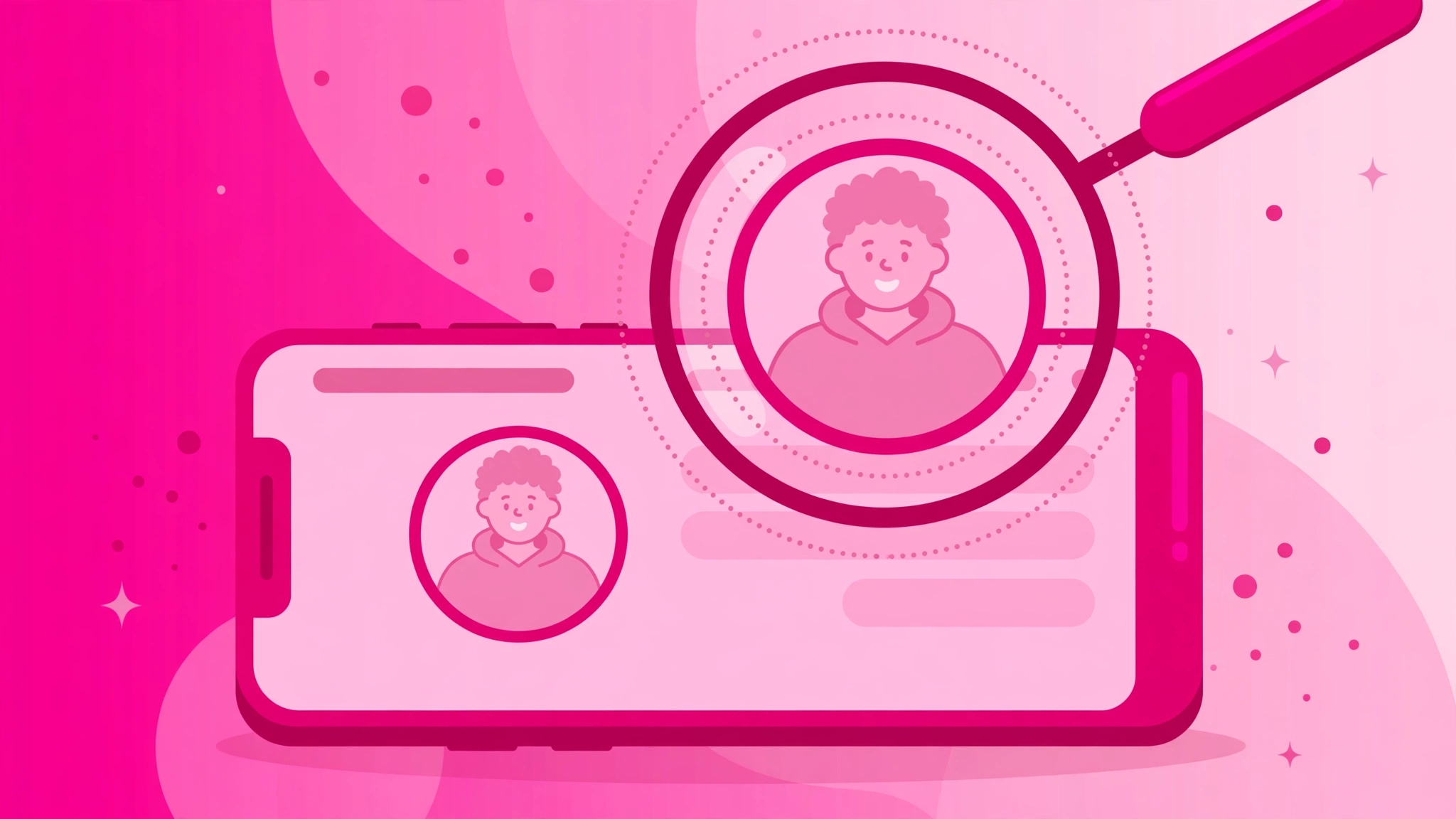
It’s one of Instagram’s most stubborn limitations: you can’t zoom in on someone’s profile picture. Tap it and nothing happens — you’re stuck squinting at a 110-pixel circle. Insta Pro fixes this with a simple long-press that opens any profile picture in full size. Here’s exactly how the Insta Pro zoom profile picture feature works and what to do if it doesn’t.
Why Instagram Won’t Let You Zoom Profile Pictures
The official app deliberately disables zooming on avatars — a design choice going back to Instagram’s earliest days, supposedly to keep profiles feeling compact and to discourage scraping profile photos. Whatever the reason, it’s frustrating: you can’t read small text in a logo avatar, check the details of someone’s photo, or even see a friend’s new haircut properly.
Third-party websites claim to enlarge profile pictures if you paste in a username, but they require handing your browsing to an unknown site (and they can’t touch private accounts). Insta Pro’s built-in zoom is faster, private, and works right inside the app. If you don’t have it yet, get the latest build from our Insta Pro download page.
How to Zoom a Profile Picture in Insta Pro
- Open Insta Pro and go to any profile — your own, a friend’s, or a public figure’s.
- Long-press (press and hold) on the profile picture at the top of the page.
- The avatar opens in a full-screen viewer at its full uploaded resolution.
- Pinch to zoom in further on details, and swipe or tap outside the image to close it.
The same long-press gesture works in other places too: on avatars in your DMs list, on commenter profile pictures in comment threads, and on the small avatars in stories. Anywhere you see a profile photo, you can enlarge it.
Zooming on Private Accounts
Yes — the zoom works on private accounts you follow, just like on public ones. Insta Pro doesn’t bypass Instagram’s privacy: it enlarges the same profile picture your account is already allowed to see. If you don’t follow a private account and can’t see its content, you can’t zoom its profile picture either. That’s by design, and any tool claiming otherwise is lying (or phishing).
Saving a Zoomed Profile Picture
Once the full-size viewer is open, look for the download or save option — in most Insta Pro builds, a small download icon appears in the viewer. One tap saves the full-resolution avatar to your gallery. This is covered in more detail in our media download guide.
As with all downloads, keep it respectful: saving a friend’s photo for your contacts list is fine; reposting someone’s profile picture as your own is not.
Zoom Quality: What to Expect
Here’s the honest truth about quality: Instagram stores profile pictures at a modest resolution (around 320×320 pixels for most accounts). Insta Pro shows you the full file Instagram has — which is dramatically better than the tiny circle in the app, but it’s not going to be razor-sharp if you pinch-zoom to 400%.
In practice, the full-size view is perfectly clear for its intended purpose: recognising faces, reading logos, and viewing details that are invisible at avatar size. Don’t expect wallpaper quality — expect a proper, viewable photo instead of a thumbnail.
More Than Just Profile Pictures
The zoom capability pairs nicely with Insta Pro’s other media tools. You can also pinch-zoom on regular feed photos (the official app supports this too), long-press to copy bios and comments, and download any photo in full resolution — all covered in our hidden features guide.
Troubleshooting: Zoom Not Working
Long-press does nothing. Make sure you’re pressing on the profile picture itself, not the username. A quick tap opens nothing in Insta Pro (unlike the official app, where tapping an avatar with an active story opens the story) — you need a deliberate press-and-hold of about half a second.
It opens the story instead. If the account has an active story, a single tap on the avatar opens the story ring. Long-press the picture to zoom; the gestures are distinct once you get the feel for the timing.
The image looks blurry. That’s the source resolution, not a bug — Instagram only stores a small version of profile pictures. If it’s extremely pixelated, the account may have uploaded a very low-quality avatar.
Zoom stopped working after an update. Make sure you’re on the latest Insta Pro build. Gesture features occasionally need re-enabling after major updates — check the app’s own settings under the relevant section.
Frequently Asked Questions
Yes, if you follow the account. Insta Pro enlarges the same profile picture your account can already see — it cannot bypass Instagram’s privacy settings or show you avatars of accounts you can’t access.
No. Zooming is entirely local to your device. Instagram does not notify users when someone views or enlarges their profile picture, in the official app or in Insta Pro.
Yes. The full-size viewer includes a download option that saves the full-resolution avatar to your gallery, just like downloading any other photo in Insta Pro.
Instagram stores profile pictures at a small resolution (around 320×320 pixels). Insta Pro shows you the complete file, which is much better than the in-app thumbnail but won’t be sharp at extreme magnification.
Yes. The long-press gesture works on profile pictures anywhere in the app — profiles, DM lists, comment threads, and story viewers.
It’s a small feature that fixes a daily annoyance — once you’ve long-pressed your first profile picture, you’ll do it without thinking. And it’s just one of many quality-of-life improvements: see our hidden features roundup for nine more.